At this time, Corex Financial Inc. does not have a native mobile application. However, you can still add a mobile-friendly web page app to your phone's home screen for easy access at any time.
It will show up as an icon on your homescreen wherever you choose to add it. It will take you only a few moments to complete, likely in less time than it would take to download an app!
Here is how you can do that. Navigate to the login page as you normally would on your desktop. Here are the common links you would need:
Once you have completed the steps below, you will be able to quickly open your login page and log in.
iPhone
Note: You can 'Add to Home Screen' as a Web App or a Website Link. The Web App option will have a cleaner look and feel, more like a traditional mobile app. The Website option will have the same full functionality as the desktop browser.
iPhone Safari Browser
- Open your mobile browser and enter the Client Portal login page link just as you would on your desktop.
- Tap the three dots, then tap the Share option.
- Scroll down and tap on Add to Home Screen.
- If you want, edit the site’s title (eg. Corex) as that is what will appear on your home screen.
-
When everything is to your satisfaction, tap Add.
iPhone Chrome Browser
- Open your mobile browser and enter the Client Portal login page link just as you would on your desktop.
- Tap the Share option next to the link address.
- Tap on View More, and then scroll down and tap on Add to Home Screen.
- If you want, edit the site’s title (eg. Corex) as that is what will appear on your home screen.
- When everything is to your satisfaction, tap Add.
Android
Chrome:
- Open the link that you need.
- Chrome may immediately prompt you to "Add to Home Screen". If it does not, click the 3 dots in the top-right corner. The menu options will appear.
- Choose "Add to Home Screen".
First, open the link that you need. Chrome may prompt you to "Add to Home Screen". If it does not, click the 3 dots at the top right, and then scroll down to "Add to Home screen".
Samsung Internet Browser:
- Open the link that you need.
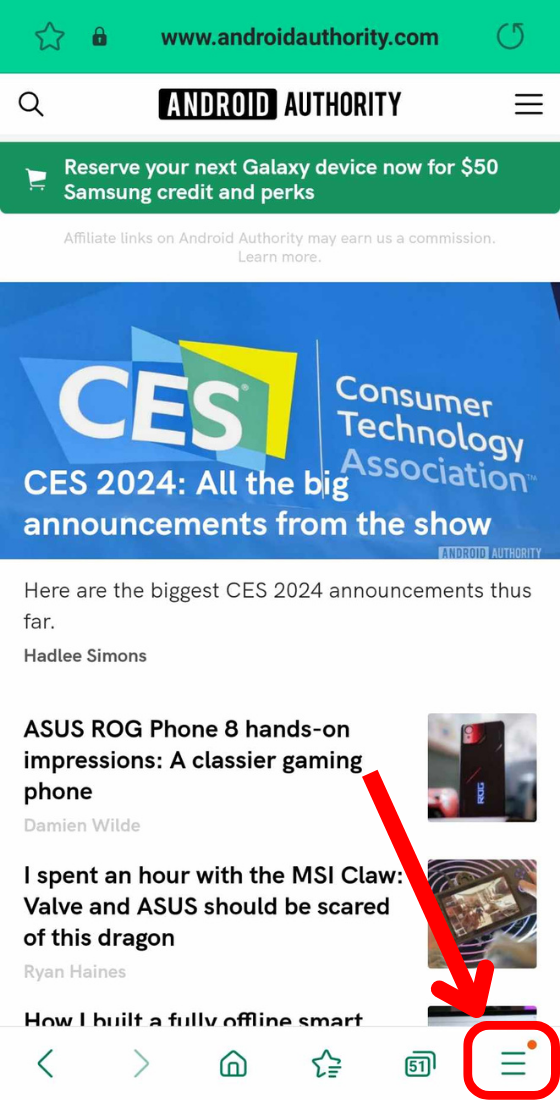
- Tap the Hamburger icon in the bottom-right corner of the screen. The menu options will appear.
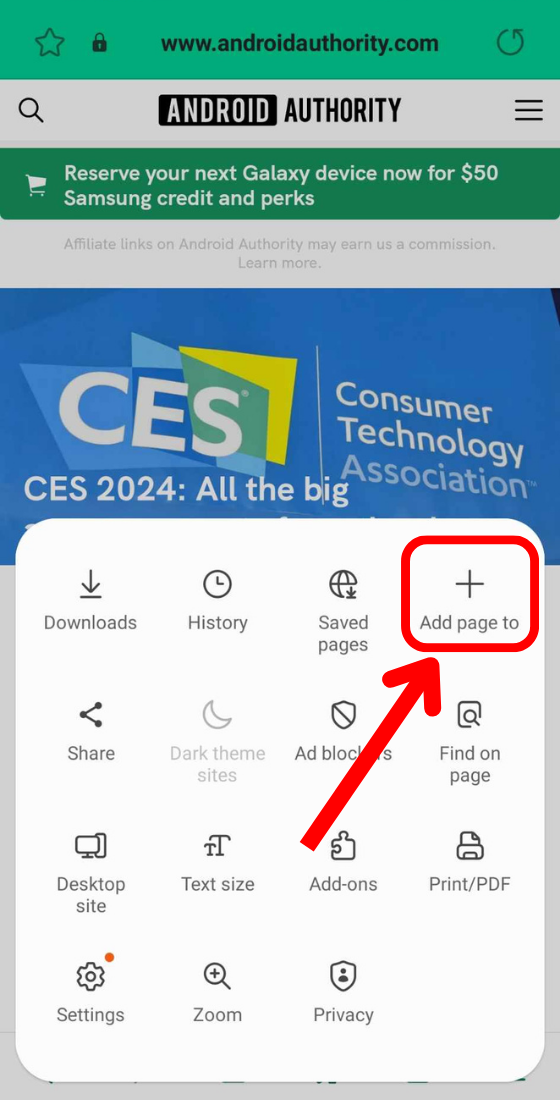
- From the menu, select the Add page to button.
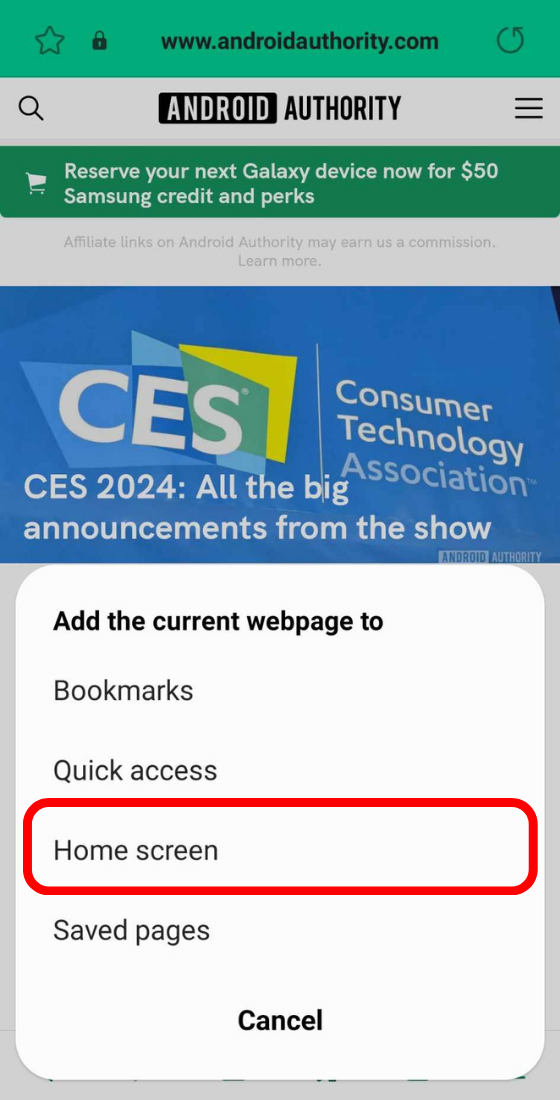
- Choose Home Screen.
- Then, tap Add to finish.